Core Concepts
This guide explains the fundamental concepts you need to understand when working with PDFDancer, including both PDF-specific concepts and PDFDancer's content model.
PDF Fundamentals
PDF Coordinate System
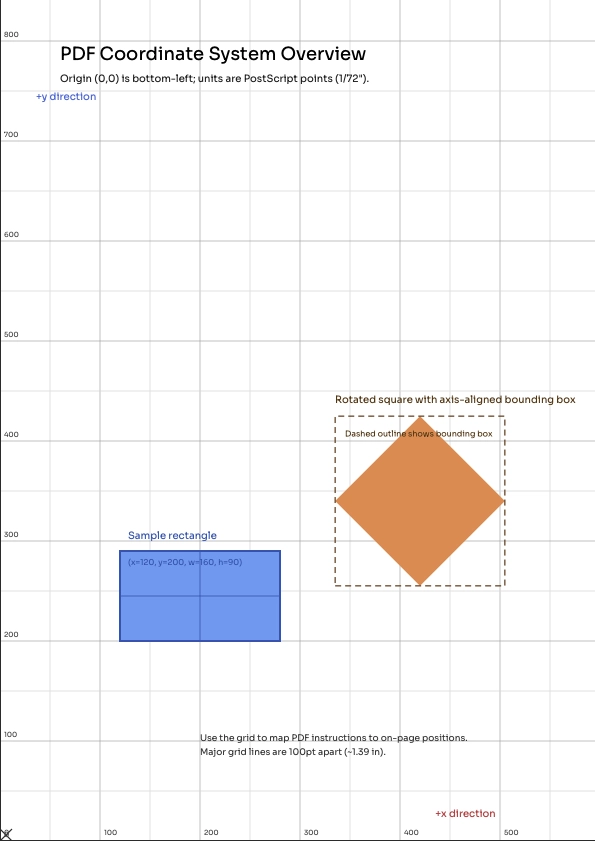
PDF uses a Cartesian coordinate system with the origin at the bottom-left corner of the page:
- X-axis: Increases from left (0) to right
- Y-axis: Increases from bottom (0) to top
- Units: PDF points (1 point = 1/72 inch)
Common Page Sizes:
- Letter (US): 612 × 792 points (8.5" × 11")
- A4: 595 × 842 points (210mm × 297mm)
- Legal: 612 × 1008 points (8.5" × 14")
PDF Points
All measurements in PDF use points as the base unit:
- 1 point = 1/72 inch
- 72 points = 1 inch
- 1 inch margin = 72 points
Page Sizes
PDFDancer provides constants for standard page sizes. All dimensions are in points.
ISO A Series:
- Python
- TypeScript
- Java
from pdfdancer import PageSize

# ISO A Series
PageSize.A4     # 595 × 842 points (210mm × 297mm)
PageSize.A3     # 842 × 1191 points (297mm × 420mm)
PageSize.A5     # 420 × 595 points (148mm × 210mm)
import { PageSize } from 'pdfdancer-client-typescript';

// ISO A Series
PageSize.A4     // 595 × 842 points (210mm × 297mm)
PageSize.A3     // 842 × 1191 points (297mm × 420mm)
PageSize.A5     // 420 × 595 points (148mm × 210mm)
import com.pdfdancer.common.model.PageSize;

// ISO A Series
PageSize.A0         // 2384 × 3370 points (841mm × 1189mm)
PageSize.A1         // 1684 × 2384 points (594mm × 841mm)
PageSize.A2         // 1191 × 1684 points (420mm × 594mm)
PageSize.A3         // 842 × 1191 points (297mm × 420mm)
PageSize.A4         // 595 × 842 points (210mm × 297mm)
PageSize.A5         // 420 × 595 points (148mm × 210mm)
PageSize.A6         // 298 × 420 points (105mm × 148mm)

// ISO B Series
PageSize.B4         // 709 × 1001 points (250mm × 353mm)
PageSize.B5         // 499 × 709 points (176mm × 250mm)
US/North American Sizes:
- Python
- TypeScript
- Java
# US Sizes
PageSize.LETTER    # 612 × 792 points (8.5" × 11")
PageSize.LEGAL     # 612 × 1008 points (8.5" × 14")
PageSize.TABLOID   # 792 × 1224 points (11" × 17")
// US Sizes
PageSize.LETTER    // 612 × 792 points (8.5" × 11")
PageSize.LEGAL     // 612 × 1008 points (8.5" × 14")
PageSize.TABLOID   // 792 × 1224 points (11" × 17")
// US Sizes
PageSize.LETTER      // 612 × 792 points (8.5" × 11")
PageSize.LEGAL       // 612 × 1008 points (8.5" × 14")
PageSize.TABLOID     // 792 × 1224 points (11" × 17")
PageSize.EXECUTIVE   // 522 × 756 points (7.25" × 10.5")
PageSize.POSTCARD    // 288 × 432 points (4" × 6")
PageSize.INDEX_3X5   // 216 × 360 points (3" × 5")
Custom Page Sizes:
- Python
- TypeScript
- Java
# Create custom page size (width, height in points)
custom_size = PageSize(name=None, width=500.0, height=700.0)
// Create custom page size (width, height in points)
const customSize = new PageSize(null, 500.0, 700.0);
// Create custom page size (width, height in points)
PageSize customSize = PageSize.custom(500.0, 700.0);
Bounding Rectangles
Every PDF element has a bounding rectangle that defines its position and size:
{
    "x": 100,      # Left edge (from page left)
    "y": 500,      # Bottom edge (from page bottom)
    "width": 200,  # Width in points
    "height": 50   # Height in points
}
PDFDancer Content Model
PDFDancer provides a structured way to interact with PDF content through several key object types.
Pages
Pages are the fundamental containers in a PDF document. Each page has:
- A page number (page 1 is the first page)
- Dimensions (width and height in points)
- A bounding rectangle defining its size
- Content (paragraphs, images, paths, form fields)
Pages are accessed using pdf.page(number):
PDFDancer uses standard page numbering — page 1 is the first page.
- Python
- TypeScript
- Java
# Get first page
first_page = pdf.page(1)

# Get all pages
all_pages = pdf.pages()
// Get first page
const firstPage = pdf.page(1);

// Get all pages
const allPages = await pdf.pages();
// Get first page
PageRef firstPage = pdf.page(1);

// Get all pages
List<PageRef> allPages = pdf.getPages();
Paragraphs
Paragraphs are PDFDancer's high-level text abstraction. A paragraph represents a logical block of text that may span multiple lines.
Key Properties:
text: The complete text contentposition: Bounding rectangle and page locationinternal_id: Unique identifier within the PDF
When to use Paragraphs:
- Finding text blocks by content (e.g., "Invoice #12345")
- Editing multi-line text blocks
- Replacing entire sections of text
- Adding formatted text content
- Python
- TypeScript
- Java
# Select all paragraphs
paragraphs = pdf.select_paragraphs()

# Select by text prefix
headers = pdf.select_paragraphs_starting_with("Chapter")

# Access paragraph properties
for para in paragraphs:
    print(f"Text: {para.text}")
    print(f"Position: {para.position.bounding_rect}")
// Select all paragraphs
const paragraphs = await pdf.selectParagraphs();

// Select by text prefix
const headers = await pdf.selectParagraphsStartingWith('Chapter');

// Access paragraph properties
for (const para of paragraphs) {
  console.log(`Text: ${para.text}`);
  console.log(`Position: ${para.position.boundingRect}`);
}
// Select all paragraphs
List<TextParagraphReference> paragraphs = pdf.selectParagraphs();

// Select by text prefix
List<TextParagraphReference> headers = pdf.selectParagraphsStartingWith("Chapter");

// Access paragraph properties
for (TextParagraphReference para : paragraphs) {
    System.out.println("Text: " + para.getText());
    System.out.println("Position: " + para.getPosition().getBoundingRect());
}
TextLines
TextLines represent individual lines of text within a paragraph. They provide finer-grained control than paragraphs.
Key Properties:
text: The text content of the lineposition: Bounding rectangle of the lineinternal_id: Unique identifier
When to use TextLines:
- Precise line-by-line text manipulation
- Finding single-line text elements
- Working with tabular data or structured text
- Python
- TypeScript
- Java
# Select all text lines
lines = pdf.page(1).select_lines()

# Select lines by prefix
date_lines = pdf.select_text_lines_starting_with("Date:")

for line in lines:
    print(f"Line text: {line.text}")
// Select all text lines
const lines = await pdf.page(1).selectLines();

// Select lines by prefix
const dateLines = await pdf.selectTextLinesStartingWith('Date:');

for (const line of lines) {
  console.log(`Line text: ${line.text}`);
}
// Select all text lines
List<TextLineReference> lines = pdf.page(1).selectTextLines();

// Select lines by prefix
List<TextLineReference> dateLines = pdf.selectTextLinesStartingWith("Date:");

for (TextLineReference line : lines) {
    System.out.println("Line text: " + line.getText());
}
Paragraph vs TextLine:
- Use Paragraphs for semantic text blocks (headings, body text, captions)
- Use TextLines for precise line-level control or single-line elements
Images
Images represent raster graphics (PNG, JPEG, etc.) embedded in the PDF.
Key Properties:
internal_id: Unique identifierposition: Bounding rectangle and location- Image data (for export/manipulation)
Common Operations:
- Selecting images by position
- Adding new images at specific coordinates
- Deleting existing images
- Replacing images
- Python
- TypeScript
- Java
# Select all images on a page
images = pdf.page(1).select_images()

# Select images at coordinates
images_at_point = pdf.page(1).select_images_at(x=100, y=500)

# Add a new image
pdf.new_image() \
    .from_file("logo.png") \
    .at(page=1, x=50, y=700) \
    .add()
// Select all images on a page
const images = await pdf.page(1).selectImages();

// Select images at coordinates
const imagesAtPoint = await pdf.page(1).selectImagesAt(100, 500);

// Add a new image
await pdf.newImage()
  .fromFile('logo.png')
  .at(1, 50, 700)
  .add();
// Select all images on a page
List<ImageReference> images = pdf.page(1).selectImages();

// Select images at coordinates
List<ImageReference> imagesAtPoint = pdf.page(1).selectImagesAt(100, 500);

// Add a new image
pdf.newImage()
    .fromFile(new File("logo.png"))
    .at(1, 50, 700)
    .add();
Paths (Vector Graphics)
Paths are vector graphics elements that can represent lines, curves, shapes, and complex drawings.
What Paths Represent:
- Lines and curves (straight lines, Bézier curves)
- Shapes (rectangles, circles, polygons)
- Borders and decorative elements
- Technical drawings and diagrams
Key Concepts:
- Bézier curves: Mathematical curves defined by control points
- Stroke: The outline of a path (color, width)
- Fill: The interior color of closed paths
- Path Groups: Multiple paths can be grouped together for batch manipulation (move, scale, rotate, resize, remove)
- Python
- TypeScript
- Java
# Select all paths on a page
paths = pdf.page(1).select_paths()

# Select paths at specific coordinates
paths_at_point = pdf.page(1).select_paths_at(x=150, y=320)

for path in paths:
    print(f"Path ID: {path.internal_id}")
// Select all paths on a page
const paths = await pdf.page(1).selectPaths();

// Select paths at specific coordinates
const pathsAtPoint = await pdf.page(1).selectPathsAt(150, 320);

for (const path of paths) {
  console.log(`Path ID: ${path.internalId}`);
}
// Select all paths on a page
List<PathReference> paths = pdf.page(1).selectPaths();

// Select paths at specific coordinates
List<PathReference> pathsAtPoint = pdf.page(1).selectPathAt(150, 320);

for (PathReference path : paths) {
    System.out.println("Path ID: " + path.getInternalId());
}
Form Fields (AcroForms)
Form Fields are interactive elements in PDF forms (AcroForms) that can be filled programmatically.
Common Field Types:
- Text fields: Single-line or multi-line text input
- Checkboxes: Boolean on/off values
- Radio buttons: Single choice from multiple options
- Dropdowns: Selection from a list
Key Properties:
name: Field identifier (e.g., "firstName", "email")object_type: Type of fieldposition: Location on the page
- Python
- TypeScript
- Java
# Select all form fields
fields = pdf.select_form_fields()

# Select by name
name_fields = pdf.select_form_fields_by_name("firstName")

# Fill a field
if name_fields:
    name_fields[0].edit().value("John Doe").apply()
// Select all form fields
const fields = await pdf.selectFormFields();

// Select by name
const nameFields = await pdf.selectFieldsByName('firstName');

// Fill a field
if (nameFields.length > 0) {
  await nameFields[0].fill('John Doe');
}
// Select all form fields
List<FormFieldReference> fields = pdf.selectFormFields();

// Select by name
List<FormFieldReference> nameFields = pdf.selectFormFieldsByName("firstName");

// Fill a field
if (!nameFields.isEmpty()) {
    nameFields.get(0).setValue("John Doe");
}
FormXObjects
FormXObjects (also called XObjects) are reusable content streams that can be referenced multiple times throughout a document.
Use Cases:
- Company logos appearing on every page
- Page headers and footers
- Watermarks
- Template overlays
Benefits:
- Efficiency: Content is stored once, referenced many times
- Consistency: Ensures identical appearance across pages
- Smaller file size: No content duplication
FormXObjects can be transformed (scaled, rotated, positioned) each time they're used without modifying the original content.
Working with FormXObjects:
- Python
- TypeScript
- Java
from pdfdancer import PDFDancer

with PDFDancer.open("document.pdf") as pdf:
    # Select all FormXObjects on a page
    formxobjects = pdf.page(1).select_formxobjects()

    # Select FormXObjects at specific coordinates
    formxobjects_at_point = pdf.page(1).select_formxobjects_at(x=100, y=500)

    for fxo in formxobjects:
        print(f"FormXObject ID: {fxo.internal_id}")
        print(f"Position: {fxo.position.bounding_rect}")
import { PDFDancer } from 'pdfdancer-client-typescript';

const pdf = await PDFDancer.open('document.pdf');

// Select all FormXObjects on a page
const formxobjects = await pdf.page(1).selectFormXObjects();

// Select FormXObjects at specific coordinates
const formxobjectsAtPoint = await pdf.page(1).selectFormXObjectsAt(100, 500);

for (const fxo of formxobjects) {
  console.log(`FormXObject ID: ${fxo.internalId}`);
  console.log(`Position: ${fxo.position.boundingRect}`);
}
import com.tfc.pdf.pdfdancer.api.PDFDancer;
import com.tfc.pdf.pdfdancer.api.common.model.*;

PDFDancer pdf = PDFDancer.createSession("document.pdf");

// Select all FormXObjects on a page
List<FormXObjectReference> formxobjects = pdf.page(1).selectFormXObjects();

// Select FormXObjects at specific coordinates
List<FormXObjectReference> formxobjectsAtPoint = pdf.page(1).selectFormXObjectsAt(100, 500);

for (FormXObjectReference fxo : formxobjects) {
    System.out.println("FormXObject ID: " + fxo.getInternalId());
    System.out.println("Position: " + fxo.getPosition().getBoundingRect());
}
Fonts
PDF supports both standard and custom fonts.
Standard PDF Fonts
The 14 standard PDF fonts are guaranteed to be available in all PDF readers and do not need to be embedded in the PDF document.
Serif Fonts (Times family):
- Python
- TypeScript
- Java
from pdfdancer import StandardFonts

StandardFonts.TIMES_ROMAN          # Times-Roman
StandardFonts.TIMES_BOLD           # Times-Bold
StandardFonts.TIMES_ITALIC         # Times-Italic
StandardFonts.TIMES_BOLD_ITALIC    # Times-BoldItalic
import { StandardFonts } from 'pdfdancer-client-typescript';

StandardFonts.TIMES_ROMAN          // Times-Roman
StandardFonts.TIMES_BOLD           // Times-Bold
StandardFonts.TIMES_ITALIC         // Times-Italic
StandardFonts.TIMES_BOLD_ITALIC    // Times-BoldItalic
import com.pdfdancer.common.util.StandardFonts;

StandardFonts.TIMES_ROMAN          // Times-Roman
StandardFonts.TIMES_BOLD           // Times-Bold
StandardFonts.TIMES_ITALIC         // Times-Italic
StandardFonts.TIMES_BOLD_ITALIC    // Times-BoldItalic
Sans-serif Fonts (Helvetica family):
- Python
- TypeScript
- Java
StandardFonts.HELVETICA              # Helvetica
StandardFonts.HELVETICA_BOLD         # Helvetica-Bold
StandardFonts.HELVETICA_OBLIQUE      # Helvetica-Oblique
StandardFonts.HELVETICA_BOLD_OBLIQUE # Helvetica-BoldOblique
StandardFonts.HELVETICA              // Helvetica
StandardFonts.HELVETICA_BOLD         // Helvetica-Bold
StandardFonts.HELVETICA_OBLIQUE      // Helvetica-Oblique
StandardFonts.HELVETICA_BOLD_OBLIQUE // Helvetica-BoldOblique
StandardFonts.HELVETICA              // Helvetica
StandardFonts.HELVETICA_BOLD         // Helvetica-Bold
StandardFonts.HELVETICA_OBLIQUE      // Helvetica-Oblique
StandardFonts.HELVETICA_BOLD_OBLIQUE // Helvetica-BoldOblique
Monospace Fonts (Courier family):
- Python
- TypeScript
- Java
StandardFonts.COURIER              # Courier
StandardFonts.COURIER_BOLD         # Courier-Bold
StandardFonts.COURIER_OBLIQUE      # Courier-Oblique
StandardFonts.COURIER_BOLD_OBLIQUE # Courier-BoldOblique
StandardFonts.COURIER              // Courier
StandardFonts.COURIER_BOLD         // Courier-Bold
StandardFonts.COURIER_OBLIQUE      // Courier-Oblique
StandardFonts.COURIER_BOLD_OBLIQUE // Courier-BoldOblique
StandardFonts.COURIER              // Courier
StandardFonts.COURIER_BOLD         // Courier-Bold
StandardFonts.COURIER_OBLIQUE      // Courier-Oblique
StandardFonts.COURIER_BOLD_OBLIQUE // Courier-BoldOblique
Symbol and Decorative Fonts:
- Python
- TypeScript
- Java
StandardFonts.SYMBOL          # Symbol (mathematical and special characters)
StandardFonts.ZAPF_DINGBATS   # ZapfDingbats (decorative symbols)
StandardFonts.SYMBOL          // Symbol (mathematical and special characters)
StandardFonts.ZAPF_DINGBATS   // ZapfDingbats (decorative symbols)
StandardFonts.SYMBOL          // Symbol (mathematical and special characters)
StandardFonts.ZAPF_DINGBATS   // ZapfDingbats (decorative symbols)
Using Standard Fonts:
- Python
- TypeScript
- Java
# Use standard font constant
pdf.new_paragraph() \
    .text("Hello World") \
    .font(StandardFonts.HELVETICA.value, 12) \
    .add()

# Or use font name string directly
pdf.new_paragraph() \
    .text("Hello World") \
    .font("Helvetica", 12) \
    .add()
// Use standard font constant
await pdf.page(1).newParagraph()
  .text('Hello World')
  .font(StandardFonts.HELVETICA.getFontName(), 12)
  .apply();

// Or use font name string directly
await pdf.page(1).newParagraph()
  .text('Hello World')
  .font('Helvetica', 12)
  .apply();
// Use standard font constant
pdf.newParagraph()
    .text("Hello World")
    .font(StandardFonts.HELVETICA.getFontName(), 12)
    .at(1, 100, 200)
    .add();

// Or use font name string directly
pdf.newParagraph()
    .text("Hello World")
    .font("Helvetica", 12)
    .at(1, 100, 200)
    .add();
Custom Fonts
PDFDancer supports embedding custom TrueType fonts (.ttf) for precise typography.
- Python
- TypeScript
- Java
# Use standard font
pdf.new_paragraph() \
    .text("Hello World") \
    .font("Helvetica", 12) \
    .add()

# Use custom font
pdf.new_paragraph() \
    .text("Custom Typography") \
    .font_file("custom-font.ttf", 14) \
    .add()
// Use standard font
await pdf.page(1).newParagraph()
  .text('Hello World')
  .font('Helvetica', 12)
  .apply();

// Use custom font
await pdf.page(1).newParagraph()
  .text('Custom Typography')
  .fontFile('custom-font.ttf', 14)
  .apply();
// Use standard font
pdf.newParagraph()
    .text("Hello World")
    .font("Helvetica", 12)
    .at(1, 100, 200)
    .add();

// Use custom font
pdf.newParagraph()
    .text("Custom Typography")
    .font(new File("custom-font.ttf"), 14)
    .at(1, 100, 200)
    .add();
Position Objects
Position objects encapsulate coordinate information for precise element placement and selection.
Creating Positions
- Python
- TypeScript
- Java
from pdfdancer import Position, PositionMode

# Create position at point
position = Position.at_page_coordinates(page=0, x=100, y=200)

# Create position with bounding rect
position = Position(
    page_number=1,
    bounding_rect={"x": 100, "y": 200, "width": 50, "height": 30},
    mode=PositionMode.INTERSECT
)

# Use for selection
paragraphs = pdf.select_paragraphs_at(position)
import { Position, PositionMode } from 'pdfdancer-client-typescript';

// Create position at point
const position = Position.atPageCoordinates(0, 100, 200);

// Access position properties
const x = position.getX();
const y = position.getY();
const page = position.getPageNumber();

// Use for selection
const paragraphs = await pdf.page(1).selectParagraphsAt(x!, y!);
import com.pdfdancer.common.model.Position;

// Access position properties from selected elements
Position pos = paragraph.getPosition();
double x = pos.getX();
double y = pos.getY();
int page = pos.getPageNumber();

// Use for selection at coordinates
List<TextParagraphReference> paragraphs = pdf.page(1).selectParagraphsAt(100, 200);
Position Modes
- INTERSECT: Select elements that overlap with the position area
- CONTAIN: Select elements fully contained within the position area
- EXACT: Select elements at exact coordinates
Color
PDFDancer uses RGB color values for text and graphics.
- Python
- TypeScript
- Java
from pdfdancer import Color

# Create colors
black = Color(0, 0, 0)
red = Color(255, 0, 0)
gray = Color(128, 128, 128)
custom = Color(70, 130, 180)  # Steel blue

# Apply to text
pdf.new_paragraph() \
    .text("Colored text") \
    .color(red) \
    .add()
import { Color } from 'pdfdancer-client-typescript';

// Create colors
const black = new Color(0, 0, 0);
const red = new Color(255, 0, 0);
const gray = new Color(128, 128, 128);
const custom = new Color(70, 130, 180);  // Steel blue

// Apply to text
await pdf.page(1).newParagraph()
  .text('Colored text')
  .color(red)
  .apply();
import com.pdfdancer.common.model.Color;

// Create colors
Color black = new Color(0, 0, 0);
Color red = new Color(255, 0, 0);
Color gray = new Color(128, 128, 128);
Color custom = new Color(70, 130, 180);  // Steel blue

// Pre-defined colors
Color.BLACK;
Color.RED;
Color.WHITE;

// Apply to text
pdf.newParagraph()
    .text("Colored text")
    .color(red)
    .at(1, 100, 200)
    .add();
Selection vs Creation
PDFDancer provides two primary workflows:
Selection (Read/Modify)
Use select_* methods to find existing content:
# Find existing content
paragraphs = pdf.select_paragraphs()
images = pdf.page(1).select_images()
fields = pdf.select_form_fields_by_name("email")

# Modify it
paragraphs[0].edit().replace("New text").apply()
Creation (Add)
Use new_* methods to add new content:
# Add new content
pdf.new_paragraph() \
    .text("New content") \
    .at(page_number=1, x=100, y=500) \
    .add()

pdf.new_image() \
    .from_file("logo.png") \
    .at(page=1, x=50, y=700) \
    .add()
Fluent Builders
PDFDancer uses fluent builder patterns for creating and editing content. Builders allow you to chain method calls for readable, declarative code:
- Python
- TypeScript
- Java
# Paragraph builder
pdf.new_paragraph() \
    .text("Hello World") \
    .font("Helvetica", 12) \
    .color(Color(0, 0, 0)) \
    .line_spacing(1.5) \
    .at(page_number=1, x=100, y=500) \
    .add()

# Edit builder
paragraph.edit() \
    .replace("New text") \
    .font("Helvetica-Bold", 14) \
    .color(Color(255, 0, 0)) \
    .apply()
// Paragraph builder
await pdf.page(1).newParagraph()
  .text('Hello World')
  .font('Helvetica', 12)
  .color(new Color(0, 0, 0))
  .lineSpacing(1.5)
  .at(100, 500)
  .apply();

// Edit builder
await paragraph.edit()
  .replace('New text')
  .font('Helvetica-Bold', 14)
  .color(new Color(255, 0, 0))
  .apply();
// Paragraph builder
pdf.newParagraph()
    .text("Hello World")
    .font("Helvetica", 12)
    .color(new Color(0, 0, 0))
    .lineSpacing(1.5)
    .at(1, 100, 500)
    .add();

// Edit builder
paragraph.edit()
    .replace("New text")
    .font("Helvetica-Bold", 14)
    .color(new Color(255, 0, 0))
    .apply();
Thread Safety
PDFDancer sessions are not thread-safe and must not be used concurrently.
Each session instance should only be accessed from a single thread at a time. Do not share session objects across threads or use them in concurrent operations.
Why This Matters:
When you call PDFDancer.open(), you create a session that maintains state on both the client and server. Concurrent access from multiple threads can lead to:
- Race conditions and unpredictable behavior
- Corrupted PDF state
- API errors and failed operations
Safe Patterns:
- Python
- TypeScript
- Java
from pdfdancer import PDFDancer
from concurrent.futures import ThreadPoolExecutor

# ✓ SAFE: Each thread creates its own session
def process_pdf(file_path: str) -> None:
    with PDFDancer.open(file_path) as pdf:
        # Operations on this session
        paragraphs = pdf.select_paragraphs()
        pdf.save(f"output_{file_path}")

# Process multiple PDFs in parallel - each gets its own session
with ThreadPoolExecutor() as executor:
    executor.map(process_pdf, ["doc1.pdf", "doc2.pdf", "doc3.pdf"])


# ✗ UNSAFE: Sharing a session across threads
pdf = PDFDancer.open("document.pdf")
def unsafe_operation():
    # DON'T DO THIS - multiple threads using the same session
    pdf.select_paragraphs()  # Not thread-safe!

with ThreadPoolExecutor() as executor:
    executor.submit(unsafe_operation)
    executor.submit(unsafe_operation)
import { PDFDancer } from 'pdfdancer-client-typescript';

// ✓ SAFE: Each async operation creates its own session
async function processPdf(filePath: string): Promise<void> {
  const pdfBytes = await fs.readFile(filePath);
  const pdf = await PDFDancer.open('document.pdf');

  const paragraphs = await pdf.selectParagraphs();
  await pdf.save(`output_${filePath}`);
}

// Process multiple PDFs - each gets its own session
await Promise.all([
  processPdf('doc1.pdf'),
  processPdf('doc2.pdf'),
  processPdf('doc3.pdf')
]);


// ✗ UNSAFE: Sharing a session across concurrent operations
const pdf = await PDFDancer.open('document.pdf');

// DON'T DO THIS - concurrent operations on the same session
await Promise.all([
  pdf.selectParagraphs(),  // Not safe!
  pdf.selectImages()       // Not safe!
]);
import com.pdfdancer.client.rest.PDFDancer;
import java.util.concurrent.ExecutorService;
import java.util.concurrent.Executors;

// ✓ SAFE: Each thread creates its own session
class ProcessPdfTask implements Runnable {
    private final String filePath;

    public void run() {
        try {
            byte[] pdfBytes = Files.readAllBytes(Paths.get(filePath));
            PDFDancer pdf = PDFDancer.createSession(apiKey, pdfBytes, httpClient);

            List<TextParagraphReference> paragraphs = pdf.selectParagraphs();
            pdf.save("output_" + filePath);
        } catch (IOException e) {
            // Handle exception
        }
    }
}

// Process multiple PDFs in parallel - each gets its own session
ExecutorService executor = Executors.newFixedThreadPool(3);
executor.submit(new ProcessPdfTask("doc1.pdf"));
executor.submit(new ProcessPdfTask("doc2.pdf"));
executor.submit(new ProcessPdfTask("doc3.pdf"));


// ✗ UNSAFE: Sharing a session across threads
PDFDancer pdf = PDFDancer.createSession(apiKey, pdfBytes, httpClient);

// DON'T DO THIS - multiple threads using the same session
executor.submit(() -> pdf.selectParagraphs());  // Not thread-safe!
executor.submit(() -> pdf.selectImages());      // Not thread-safe!
Best Practice: Always create a new session instance for each thread or concurrent operation. Sessions are lightweight to create and are designed for single-threaded access.
Next Steps
Now that you understand the core concepts, explore how to use them:
- Working with Pages – Access and manipulate pages
- Working with Text – Select and edit paragraphs and text lines
- Working with Images – Add and manipulate images
- Details about Positioning – Master the PDF coordinate system
- Working with AcroForms – Fill and manipulate form fields
- Working with Vector Graphics – Work with paths and shapes